

📋 GOVT HIGHER SECONDARY SCHOOL
MENDHAR ATTENDANCE
Enter Roll Number & Class to check attendance
Welcome to the official online attendance portal of Govt Higher Secondary School Mendhar. We understand that parents want to stay informed about their child’s school attendance. That is why we have developed a simple, transparent, and instant attendance checking system.
Our new digital attendance dashboard allows parents and guardians to check whether their student was Present or Absent in school by simply entering two pieces of information:
Roll Number of the student
Class in which the student is studying
The system works in real-time. The school administration maintains an Excel sheet in the backend containing the attendance records of all students. When a parent enters the roll number and class, the system instantly fetches the status and displays the result.
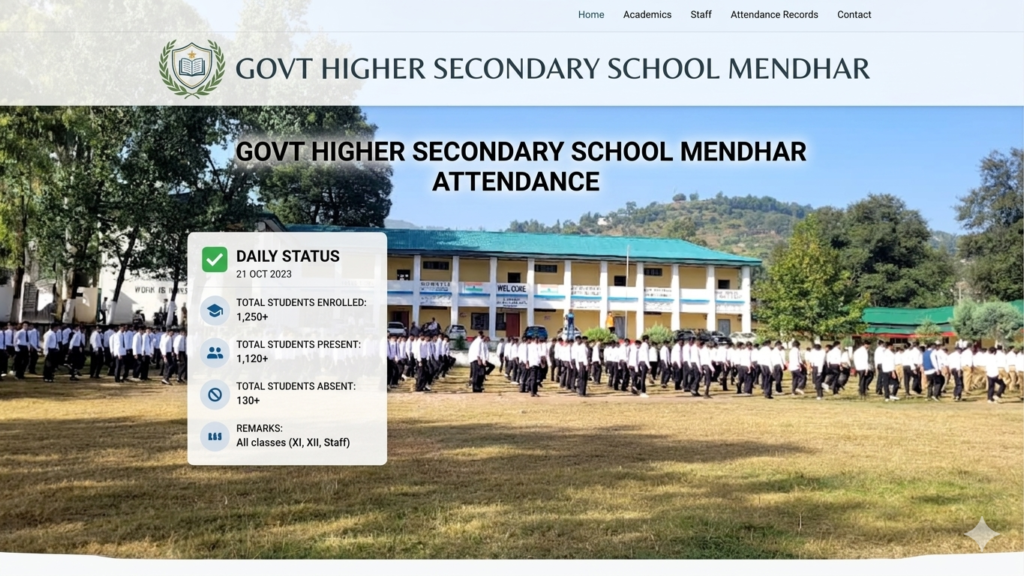
Key Highlights of This System:
✅ No login or password required – simple and parent-friendly
✅ Works on any device – mobile, tablet, laptop, or desktop
✅ School can update attendance by uploading a fresh Excel sheet anytime
✅ Parents get instant results within seconds
✅ Transparent and accurate – reduces parent-teacher communication gaps
✅ Completely free and accessible to all
How It Helps Parents:
You no longer need to visit the school or call the teacher to know if your child attended school today. Just use your smartphone, enter the roll number and class, and get the answer instantly.
How It Helps the School:
The administration can manage attendance digitally without any complex software. Just maintain an Excel file with three columns – Roll Number, Class, and Status (Present/Absent) – and upload it to the system. No technical expertise required.
This portal is part of our commitment to digital transparency and parent engagement under the Digital India initiative.
Question 1: How can parents check if their child was present or absent?
Answer: Parents need to follow three simple steps:
Enter the student’s Roll Number (as given by the school) in the Roll Number field.
Enter the student’s Class (for example, 10th A, 12th Science, 9th B) in the Class field.
Click the “Check Present / Absent” button.
The system will immediately show whether the student was marked PRESENT or ABSENT in the school’s official attendance Excel sheet. If no record is found, it will show “Not Found” – in that case, please verify the roll number and class with the school.
Question 2: How does the school update attendance in the system?
Answer: The school administration updates attendance by uploading an Excel file. Here is the complete process:
Step A: Create or update an Excel file with three columns: Roll_No, Class, Status.
Step B: Fill the Status column with either “Present” or “Absent” for each student.
Step C: Go to the Excel Sheet Widget section on this page.
Step D: Click “Choose File” and select the Excel file.
Step E: Click “Upload & Replace Data” button.
The system will instantly replace all old attendance data with the new Excel data. Parents will immediately see the updated results. There is no need for any technical knowledge – just basic Excel skills are enough.
Question 3: What is the exact format required for the Excel file?
Answer: Your Excel file must follow this exact format:
| Column A | Column B | Column C |
|---|---|---|
| Roll_No | Class | Status |
| 101 | 10th A | Present |
| 102 | 10th A | Absent |
| 58 | 12th Science | Present |
Rules to Remember:
The first row must contain headers exactly as: Roll_No, Class, Status
The Status column must contain only two values: “Present” or “Absent”
Do not use extra spaces, punctuation, or special characters
Save the file as .xlsx or .xls format
You can download a ready-made sample template using the “Download Sample Template” button in the Excel Sheet Widget
If you upload a file with incorrect format, the system will show an error or ignore invalid rows. Always preview the data in the table after upload to confirm everything is correct.
Question 4: Is my child’s attendance data secure and private?
Answer: Yes, the attendance data is secure with the following protections:
The data is stored locally in your browser’s storage – not on any external server.
Only the person who uploads the Excel file (school admin) can modify the data.
Parents can only view attendance – they cannot change any records.
No personal information like addresses, phone numbers, or Aadhar numbers is stored in this system.
The system does not share data with any third party.
Recommendation for schools: Do not use this system on public or shared computers without proper supervision. Always keep a backup master Excel file on your school’s secure computer.
Question 5: Can I use this system on my mobile phone?
Answer: Absolutely yes! The entire attendance portal is fully responsive and works perfectly on all devices:
✅ Smartphones (Android and iPhone) – all screen sizes
✅ Tablets (iPad and Android tablets)
✅ Laptops and Desktop Computers
✅ Any browser – Chrome, Safari, Firefox, Edge, Opera
The buttons, input fields, and result display automatically adjust to fit your screen. Parents can check attendance while traveling, at home, or at work – no computer needed.
Question 6: How do I add this system to my WordPress site using Elementor?
Answer: Adding this attendance system to WordPress with Elementor is very simple:
Step 1: Copy the complete HTML/CSS/JavaScript code provided above.
Step 2: Log in to your WordPress admin dashboard.
Step 3: Edit the page where you want to add the attendance portal (or create a new page).
Step 4: In Elementor editor, add a new “HTML” widget (or “Custom HTML” widget) to the page.
Step 5: Paste the entire code into the HTML widget.
Step 6: Click Update or Publish to save the page.
That’s it! The dashboard will appear exactly as designed. The Excel upload and parent check features will work immediately. No additional plugins or settings are required.
Question 7: What should I do if the system shows “No Record Found” for my child?
Answer: If you see “No Record Found” after entering roll number and class, please check the following:
Verify the Roll Number: Make sure you entered the exact roll number as given by the school (including any zeros or special characters).
Verify the Class Name: The class must match exactly with what is written in the Excel sheet. For example, “10th A” is different from “10th A” with extra spaces or “10 A”.
Check with the School: The school may not have updated the Excel sheet yet, or your child’s record might be missing.
Contact the Class Teacher: Inform the teacher that your child’s roll number and class combination is missing from the attendance Excel sheet.
The school administration can easily add any missing student by updating the Excel file and uploading it again.
Question 8: How many students can be stored in this attendance system?
Answer: There is no fixed limit. The system can handle hundreds or even thousands of student records. The performance depends on:
Your device’s processing power (for reading large Excel files)
The browser’s memory limit
For a school with up to 2000 students, the system works smoothly. If your school has more than 5000 students, we recommend splitting data into class-wise Excel files or upgrading to a database-backed solution.
Question 9: Can I track attendance for multiple dates or months?
Answer: The current version stores only the latest attendance status for each student. It is designed to show present/absent for the current day or week based on the last uploaded Excel file.
If you need to track attendance for multiple dates (attendance history), you would need an advanced version with date-wise records. Contact the school administration if you need this feature.
Workaround: You can maintain separate Excel files for each date (e.g., “Attendance_15_April.xlsx”, “Attendance_16_April.xlsx”) and rename/upload them as needed. The system always shows data from the most recently uploaded file.
Question 10: Will the data remain even after I close the browser?
Answer: Yes, the attendance data is saved in your browser’s localStorage – it remains even after closing and reopening the browser. However, please note:
The data is tied to the specific device and browser you used.
If you clear your browser cache, cookies, or site data, the attendance records will be erased.
Using a different device or browser will not show the same data unless you upload the Excel file again.
Best Practice: Always keep a master Excel file saved on your school computer. If data is accidentally lost, you can re-upload the Excel file to restore everything.
Question 11: Is this system free to use?
Answer: Yes, absolutely free! This entire attendance portal is provided as an open-source solution for educational institutions. There are no:
No subscription fees
No hidden charges
No premium upgrades required
No third-party ads
The only requirement is that you have a device with an internet connection and a modern browser.
Question 12: How can the school ensure that only authorized people upload Excel files?
Answer: The basic version of this system does not have a password protection feature. For schools using this on a public website, we recommend one of the following:
Option 1 (Simple): Do not publish the backend section on the public page. Keep the Excel upload feature on a separate, password-protected admin page inside your WordPress site.
Option 2 (Intermediate): Add a simple JavaScript password prompt to the backend section using basic authentication code.
Option 3 (Advanced): Integrate with WordPress user roles – only logged-in administrators can see the Excel upload area.
For most schools, Option 1 is the easiest and safest. Create a hidden page or restrict access using WordPress user permissions.
Question 13: What if I accidentally upload the wrong Excel file?
Answer: Don’t worry – you can always upload the correct Excel file again. The system will completely replace the wrong data with the new correct data. Additionally:
Use the “Download Sample Template” button to start fresh.
Keep backup copies of your correct Excel files on your computer.
If you completely lose data, you can manually re-enter records using the Add/Update feature (if available in your version) or upload a backup Excel file.
Question 14: Can parents check attendance for multiple children from one device?
Answer: Yes, absolutely! Parents with more than one child studying in GHSS Mendhar can check attendance for all their children using the same device. Simply:
Enter Roll Number and Class for the first child → Check result
Enter Roll Number and Class for the second child → Check result
Repeat for all children
The system does not store any personal information or limit the number of searches. You can check as many times as you want.
Question 15: Who should I contact if I face technical issues?
Answer: For any technical issues with this attendance portal, please contact:
School Administration:
Govt Higher Secondary School Mendhar
[Insert School Phone Number]
[Insert School Email Address]
For technical support regarding the Excel format or upload issues:
Please describe your problem clearly and share:
What device and browser you are using
What error message appears (if any)
Screenshot of the issue (if possible)
The school’s technical team will assist you within 24 hours on working days.